Home, Sweet Home

So Pablo inquired “anything new to say?”

Well, I always have something new to say, it’s just that for the past couple of weeks I haven’t had a way to say it.   I just returned from a visit to California, and while away from home, I was “internet challenged”, so to speak.  No mobile computer, no e-mail, no blogs, no nothing!  How ironic – here I was traveling into an area where there is probably as much combined computing power as any other location in the world – and I might just as well have been in the dark ages.  So how did it come to all this?

My first “portable” computer was a Compaq III Portable, a pricey, heavy, luggable computer with a gas-plasma 800X600 amber screen that was considered superb in its’ time.  It allowed my to have access to my software development tools while on site at a clients location.  Being able to make minor programming tweaks and re-compiling .exe’s on site was a tremendous advantage for consultants at that time, and that computer served me well through the duration of my consulting endeavors.

Fast forward to 1996, when Retta and I decided to purchase a Roughwater trawler named Lorelei (photos here) and make her our home.  We were unusual among boat owners, we soon discovered.  We actually used our vessel for what it was intended for – we cruised it among the various islands of Channel Islands National Park religiously. In fact, if the nights we spent at anchor at the Channel Islands were strung together, it would be a span of nearly two years.  We wanted dial-up internet access on board the vessel while at the marina, and I also wanted to run navigational charting software that I could tie into our GPS and radar systems for use while cruising.  We needed a small footprint, so we chose a Toshiba Satellite Pro system that served our needs very well.

When we eventually sold our vessel and began to lead a more conventional lifestyle (if you call retiring to a remote, sparsely populated rural area in the Ozarks conventional), the Toshiba laptop was pretty much relegated to the closet.  While it served us well on board Lorelei, it is, never the less, an old computer running Windows 98SE (barely), running at 133 Mhz and sporting a whopping 1GB hard disk drive.  It would hardly qualify me as a technical road-warrior, so I guess until I can justify the expense of a new laptop, I will probably be banished to the dark ages whenever I hit the road.

Now here is some fun stuff.  If you have not yet been steered over to Yahoo for their collection of Widgets, and you are running at least Windows XP or Windows 2000, you will absolutely love this massive collection of very cool (and free) gadgets called Yahoo! Widgets.  Be careful, as you can burn up a lot of time looking through all of the neat gadgets that are available. 

The Widgets are intuitive and easy to use, as I discovered recently.  I installed a To-Do List widget just before leaving for California.  When I left, I had a few things on the list for my attention when I returned.  By the time I had gotten home, Retta had figured how to use the widget, and the screen was just full of things for me to do!  So I had better be going …uh…now…

P.S. to Cindy – please jump in with comments any time.  Remember, no comments = no fun.

Computer Backup – The Time to Do It Is Now!!

We all know that we should backup our important data.  We know we should do it on a regular basis.  And yet, the vast majority of computer hobbyists either ignore, or put off this important task.  Now, more than ever, we must recognize the importance of maintaining a reliable backup system.  The use that we put our computers to today eclipses the uses of the past.  Who can imagine communicating with only a telephone and  snail-mail anymore?  How many of us do all (or most) of our banking, investing, and bill paying on-line today?  Many of us even maintain a quasi social life via computer.  Not to mention the hundreds, if not thousands of valuable photographs that exist only as bits on our hard drive.

Computer backup has generally been performed in the context of commercial, scientific, and governmental data processing.  Reliable backup hardware and software has been available for some time for these large data processing entities, and the cost associated with these reliable systems is low relative to the enormous costs of the “big iron” that is being protected.

The situation with respect to home computer users has been entirely different.  Small tape backup systems, while available, have never become commonplace among home users.  The sequential nature of these systems, along with the associated complications this casts upon the backup process, make tape backup systems an appropriate tool mostly for large DP operations.  The home user has been left with a few (not so great) options.  In earlier days, floppy disk backup was commonly utilized, due to the low cost involved, and the fact that floppy drives were standard on home computers.  But as hard disk drives grew in size, the time involved in shuffling enough floppies to create a backup became prohibitive.  To help alleviate this problem, backup software began to implement compression schemes, most of which attempted to pack all of a users computer files into one large, compressed backup volume.  This solution has evolved to use CD and DVD disks as the medium, which have increased capacity over floppies, but still suffer the same limitations.  A user must still be on hand to swap disks in and out of drives, compressed backup volumes are utilized, and special software must be used to restore these compressed files to your hard disk.  Additionally, to ease and speed up the backup process, incremental backup methods are employed.  But anyone who has ever used these backup tools, and needed to restore their lost data after a disk crash will attest to their inherant unreliability.  There is nothing quite so exasperating in the computing world as believing you have a reliable backup in hand, only to have your backup software choke in the midst of a restoration procedure (an all too frequent occurance).

But there is a new breed of device out there that has solved these problems, and in a most simple, but elegant way.  I am refering to dedicated, external backup drives, engineered specifically to perform the important task of data backup.

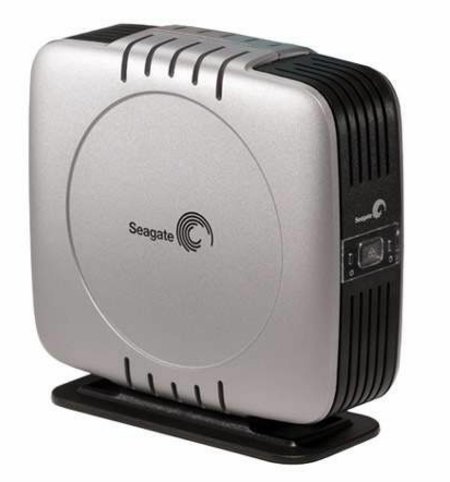
Seagate External Backup Drive

Unlike previous hard drive solutions to data integrity, such as the various incarnations of RAID (Redundant Array of Inexpensive Disks), which are expensive for the average user to implement and require special disk controller cards and empty drive bays, these drives are the epitome of “Plug and Play”.  Inexpensive to purchase, simple to install, highly portable, and very reliable, these backup drives should be high on your list of computer hardware upgrades.

The Seagate backup drive (pictured above) has both USB and Firewire connectivity.  Capacities range from 200GB to 400GB.  BounceBack software is included in the price, and couldn’t be simpler to use. There are two modes of operation, manually initiated backup, and/or scheduled backup.  To perform a manual backup at any time, just push the power button on the front of the drive.  This launches BounceBack Express, which performs a file-by-file backup of your hard drive onto the Seagate drive.  After the initial backup, which copies the entire drive to the backup device, subsequent iterations of the backup copies any new or altered files.  The files will be uncompressed, exact duplicates of the files on your computer’s hard drive – accessable via plain-vanilla Windows applications and Windows Explorer.  Backup can also be on a scheduled basis, simply by entering your desired time and frequency in the BounceBack software interface.

I now rest a little easier, knowing that at 2:00AM every morning, all of my important (and not so important) backed-up data is safe, secure, and current.

Project Green-Fed E-cycling

The state of Arkansas has teamed up with Unicor (a federal prisons contractor) to implement Project Green-Fed, available free of charge to residents of Arkansas. You inform Unicor of the equipment you have to recycle, they Fed-ex you prepaid shipping cartons, you fill the cartons and call Fed-ex, who ships the items to a federal prison in Texarkana.  Here, prisoners disassemble and recycle components from your equipment.

I requested cartons from Unicor in January, and they recently arrived here (in mid-February).  I have just filled them with a non-functioning monitor, printer, and various other items.  I am now awaiting a pickup from Fed-ex.  Without this service, I would have had to pay a $15 fee to my county waste transfer station to dispose of the monitor (by state law).

When the program started, it was a 6 month pilot-program for the state of Arkansas only.  I now see from the Unicor web site that this project has been so successful that it is going to be expanded nationwide.  Kudos to those involved in this project, as we need viable alternatives to disposing of obsolete electronics in landfills and ditches across the country.

First Impressions of HP Slimline s7320n Media Center PC

First, a caveat – I purchased this machine to use as a workstation in my upstairs digital darkroom, and not to use as a Media Center PC.  My requirements were for an inexpensive computer that would operate my scanners and printers, provide a reasonably fast platform to run Photoshop filters and render mpg2 files, and provide networked connectivity to my Media Center computer in my downstairs office (which is the repository for all my media files).  On all of these counts, this computer seems to fill the bill.  But I don’t think that I would call this a Media Center computer.

This is part of a new generation of Media Center PCs built to Microsoft’s redefinition of minimum Media Center PC hardware requirements.  A Media Center PC, unlike the original specification, no longer has to be equipped with a TV tuner card or IR blaster/remote.  And it is into this category of machine that the HP s7320n falls.

One of the first tasks that I performed after the initial set-up procedures was to import my modest CD library (about 1200 tracks) from the office computer into Windows Media Player library.  I fired up the MCE 10′ interface, and sure enough, my music appeared in My Music, just as it belonged.  I instructed MCE to do the same with my photo and video files stored on the downstairs computer, and MCE found them quickly.

The first major limitation that I experienced involved MCE’s MY TV (or lack thereof).  Because this computer has no TV tuner card, there is no MY TV folder displayed in the MCE 10′ interface.  This presents a problem for me for the following reason.  MY RECORDED TV is a sub-folder of MY TV, and because I can’t access MY TV, I also can’t access MY RECORDED TV.  But I have numerous recorded television programs stored on the downstairs computer that I would like to be able to view upstairs.

I thought that I could run the MCE configuration setup and somehow install the MY TV option onto the MCE home screen, but the configuration utility will not allow that, as it detects that there is no TV tuner card installed.  Oh well, I guess I can’t utilize the MCE 10′ interface for watching my recorded TV upstairs, but at least I can access it directly from the Windows Media Player library.  And it streams my recorded TV across the network flawlessly (so far).

The second major limitation involves the lack of a remote control.  The remote, combined with the MCE 10′ interface is a powerful and easy method of navigating among and within your media files.  Without the remote, what is the point of a 10′ interface (unless you have unusually long arms.  Besides access from a distance, the remote gives you one-button access to MY PICTURES, MY MUSIC, MY VIDEOS, MY TV, MY RADIO, etc.  Without it, one must navigate various layers of menus to get from one function to another. An additional major shortcoming is that the keyboard/mouse controls within the MCE 10′ interface does not allow access to skipping forward or backward within files, as the remote does.

I think it will be worth the modest cost involved to buy an IR receiver and remote for this computer, just to be able to browse media files and watch recorded TV while relaxing from a distance.

HP Pavilion Slimline s7320n PC to the Rescue!

FedEx just arrived with the new Slimline PC that I ordered from HPshopping.com.  Now maybe I would make some headway with my continuing networking problems.  I was quite surprised when the driver handed me such a small carton, and even more surprised to find that the PC inside was tiny!

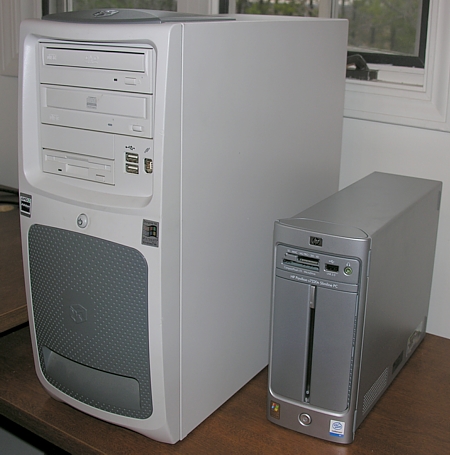
Slimline s7320n vs Conventional Tower Case

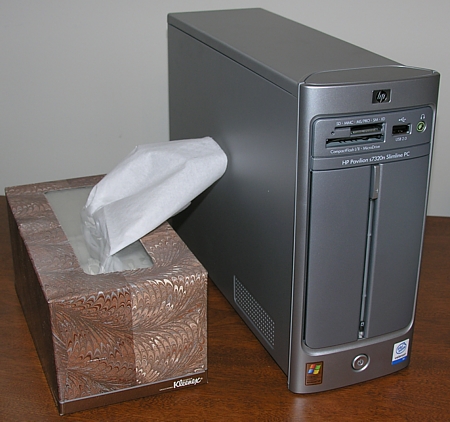
As you can see, the traditional tower that it is replacing is huge by comparison, and the Kleenex box below is nearly the same size as this computer.

Slimline s7320n vs Kleenex box

Initial setup was a breeze – no glitches occurred throughout the entire process – and all of my peripheral equipment installed and ran without a hiccup.

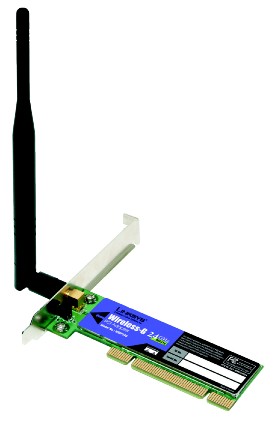
Almost all of it, that is.  My first problem occurred when I attempted to install my new Linksys Wireless G PCI card into the PC.  I knew that this PC had one PCI slot, and that it was occupied by a modem that I didn’t need.  So I thought that I would simply replace the modem with the wireless G card.  Problem is, this PC is so much narrower than a standard PC that the metal back plate on the PCI card was about an inch too long to fit.  A HACKsaw was this technicians tool of choice for this situation!  And it worked.  I was now officially a “computer HACKer” (groan).

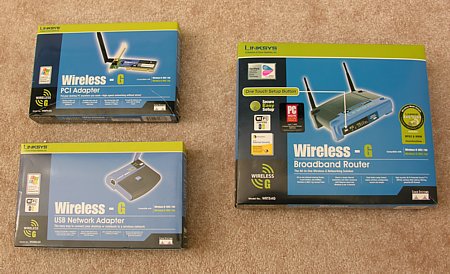
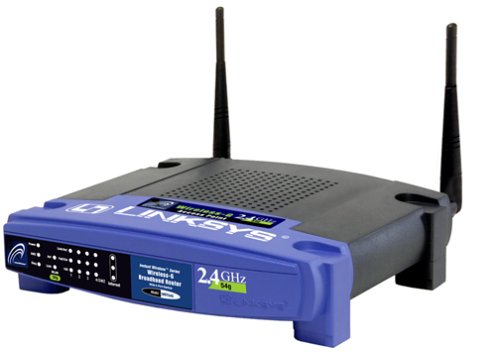
 Linksys Wireless-G components

The next problem occurred with the network equipment that I bought.  You would think that these three items pictured above, from the same manufacturer, bought at the same store at the same time, advertised on their packaging as being compatible with each other, would install fairly easily on two new computer systems both running the latest versions of XP.  Alas, it was not to be.  Without going into the gory details, I had to scrap using the Linksys installation routines and manually install and configure the drivers myself.

Once I was able to configure the adaptors, bind them to the proper protocols, and establish basic connectivity, I proceeded to run the Network setup wizard.  All this did was re-create the exact same problem that I was having with the old computer and OS!  In frustration, I scrapped the wizard and picked up a good book on networking Windows XP computers.  With book in hand, and about sixty thousand trips up and down the stairs, I was finally able to get my network working properly.

So this is Wireless?

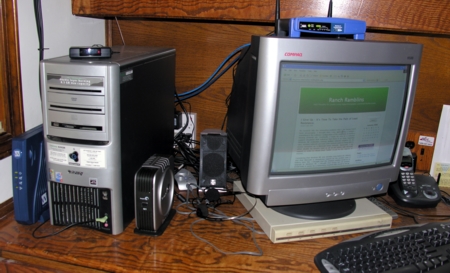
It recently occurred to me that with all of our wireless technologies, we still have not been able to overcome the tangle of wires that radiate from the back panel of our computers.  In fact, it just gets worse -  now manufacturers are all putting various jacks and connectors on the front panel as well.

 Media Center Computer

The Media Center computer above has the following cables:

  1. Power cord
  2. Monitor cord
  3. keyboard cord
  4. USB cable for wireless? mouse
  5. Ethernet cable to router
  6. Many cables and wires for the 5.1 sound system
  7. USB cable for the Media Center IR blaster receiver
  8. USB cable for the External backup hard disk drive
  9. Headphone cord
  10. Microphone cord
  11. USB cable for web cam
  12. S-video input cable from satellite TV decoder box
  13. Two (L and R) audio input cables from satellite TV decoder box
  14. S-video output cable to Sony television
  15. Two (L and R) audio output cables to living room stereo system
  16. Dipole radio antenna
  17. Ethernet cable to connect the satellite modem to the router
  18. Coax cables (2) connecting the rooftop satellite dish to the surge suppressor
  19. Coax cables (2) connecting the surge suppressor to the satellite modem
  20. Parallel printer cable

Along with this, each device seems to need power, so unless it is USB powered, there is a power cord/supply associated with it.  I count 10 power cords plugged in around my desk. Entergy Corp is probably very happy to have me as a customer!

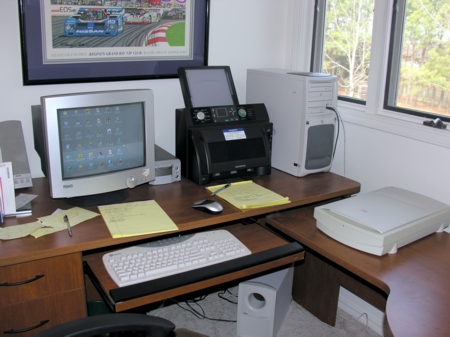
Didital Darkroom Computer

I will not detail all the cables and cords involved in my digital darkroom computer, but with film and slide scanners, flatbed scanner, 2.1 stereo, ink-jet printer, dye-sub printer, etc. it is just as tangled as the Media Center computer. I fantasize about the day that you can just take a device out of its’ box, set it on your desk, and presto – it just works! Well, hop to it, guys.

I Give Up – It’s Time To Take the Path of Least Resistance.

My research into the networking problems that I am having hasn’t been encouraging.  I thought that I was approaching a solution – something in the software configuration of the computers, or maybe a missing protocol, etc.  Eventually, I made my way to a Gateway support document that indicated that there is an issue regarding Windows ME computers running multiple network adaptors (in my case, wireless network card and 1394 network card) not being able to access resources on a Microsoft home network.  Apparently, I can either disable my firewire card, or sit on the phone with Microsoft support in order to obtain their “hot fix” (I pay for the support, of course).

Considering that Windows ME was obsolete even before its’ release, and that Microsoft is abandoning support for the product soon (I believe June ’06),  I thought that the simplest solution would be to upgrade to Windows XP.  I thought that having two XP systems would make it easier for a networking neophyte like myself to set up the network.  So I surfed over to MS to download their XP Upgrade Adviser.  After downloading this utility (32MB – thank goodness for broadband) and running it, I discovered that my photolab computer had numerous upgrade issues with XP.  That, along with numerous other issues regarding either Windows ME or the Gateway system (fails to boot or shut down properly, HDD is showing signs of eminent failure with intermittent squealing, among others), made me decide that the best, simplest, and probably cheapest solution in the long run was to buy a new computer with XP preloaded.

So yesterday I did some shopping – Thursday I’m expecting delivery of my new HP Slimline s7320n Media Center PC.  It’s amazing to me what you get nowadays for $500 – 1GB RAM, 1MB L2 cache, 200GB SATA hard drive, LightScribe Dual-Layer DVD burner, comprehensive software suite, etc.   It makes me think back to some of my past computer purchases;  DEC Rainbow 100 computer – $3500,  10 MB HDD for my DEC Rainbow – $2500,  15″ monochrome monitor for Rainbow – $1500.   Back then, you did not get software bundled with your new system.  I recall spending over $500 alone on 3 pieces of software: Digital Research’s CP/M, Microsoft’s MSDOS, and a very early Microsoft attempt at a spreadsheet called Multiplan.  Later on, for my IBM PC, I purchased a 2400 baud (yes, that’s 2400 bits per second) Hayes modem for $500 – imagine downloading a 32MB file with that! How about a dual-cartridge Bernoulli Box (20MB x 2) for $2000?  I can’t even remember how much the 20MB cartridges cost, but I do remember that they were about the size of a textbook!

I am feeling very excited about getting my network going – I just hope I am not being overly confident about easily setting up the network.  I’ll post my results soon.

Interesting DRM Article by David Byrne (Talking Heads)

I ran across this interesting post by David Byrne (of Talking Heads fame) on his blog.  Seems that copy protection will always be an issue.  This sucks.  As it is, I can’t legitimately download purchased music from MSN Music or Walmart.com (see earlier post).  Now, it looks as if I might not want to even bother buying CDs, if they are going to trash my disk drive when I load them onto my computer. 

“Living Room of the Future” Podcast from MSDN Channel 9

Jeff Henshaw and David Alles of Microsoft discuss the Living Room of the Future in this interesting podcast from MSDN Channel 9.  The subject is the use of MS X-Box 360 as a media center extender.  For anyone who had been considering buying a Media Center Extender from Linksys to compliment their Media Center computer, this should be a must see. 

There is also a good review (here) about XBox 360 and how it relates to Media Center computers on the Supersite for Windows.  Now that MS has included HD wireless streaming into the equation, everything changes.  This device might just be in my future when I take the plunge and upgrade to HDTV – hopefully in the near future.

Hitting a Brick Wall With My Networking Problem

Linksys WRT54G.jpg         Linksys Wireless PCI.jpg

I am narrowing the list of possible culprits in my continuing network setup problem.  It appears that the router is working correctly, and that the wireless and PCI network cards are also working correctly.  Here is what I can successfully accomplish:

I can browse the internet from my upstairs photo lab computer, via the wireless card upstairs and the router/access point downstairs in my office.  So, the two wireless portions of the network appear to be working together fine. 

I can browse the internet from my downstairs office computer, via the PCI card hard-wired to the router/access point.  So the hard-wired portion of the network seems to be fine.

From the office computer I can successfully ping the photo lab computer by its IP address, but when I try to ping by its computer name (PHOTOLAB), it fails.

From the photo lab computer I can successfully ping the office computer by its IP address, but when I try to ping by its computer name (OFFICE), it fails.

Office computer = Windows XP SP2 Media Center Edition (XP Pro without the ability to join domains).

Photo lab computer = Windows ME

I have run the Home Networking Wizard on both computers,  and have verified that both share the same workgroup name (MSHOME).

File and Printer Sharing for Microsoft Networks is installed on both systems, and activated on both systems.

Both network adaptors are running TCP/IP protocols.

Client for Microsoft Windows Network is installed on both computers, and is the primary windows logon for both computers.